![Move4U.png]](https://support.move4u.com/hs-fs/hubfs/Move4U.png?height=30&name=Move4U.png)
1. Add a New Destination
- Go to the Task Summary screen.
- Scroll down to the Address section and tap on the pencil icon.
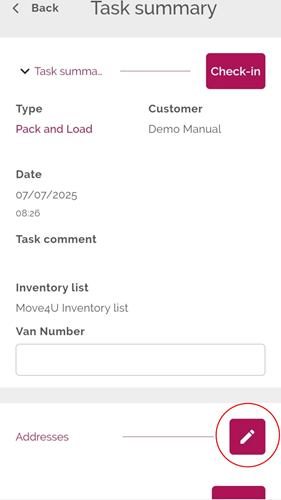
- You will first see the Origin address details, followed by the Destination address below.
- Below the Destination details, tap on the 'Add Destination' button.
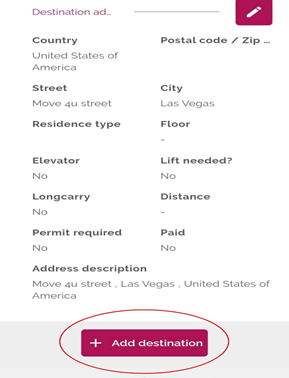
- Fill in the details of the new destination address and tap on the save button located in the bottom-right corner of your screen.
2. Change the Destination of an Item
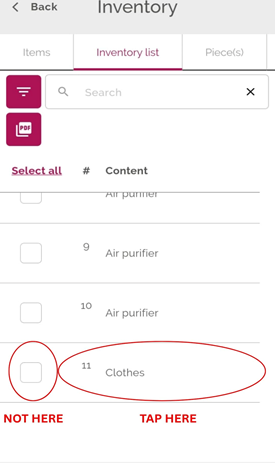
- After entering all destination details, go to the ‘Inventory List’ section and tap on the pencil icon.
- Tap on the specific item you want to change (do not tap the checkbox next to it).
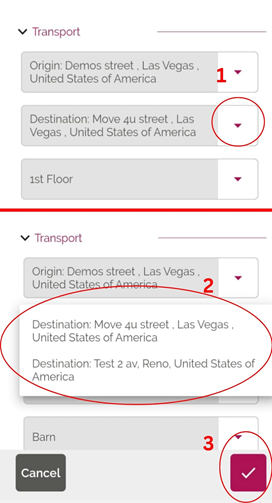
- Scroll to the Transport section and tap the Destination dropdown to view available options.
- Select the new destination and save the item by tapping the check mark in the bottom-right corner (If needed, update any other item details at this point).
- Enter the Starting Sticker Number if required.
- Repeat this process for each item that needs to be assigned to the new destination.
3. Review Your Packing Lists
- In the Inventory List tab, a dropdown menu will now be available showing both destination addresses.
- As you've assigned items to the new destination, a separate packing list is created for it.
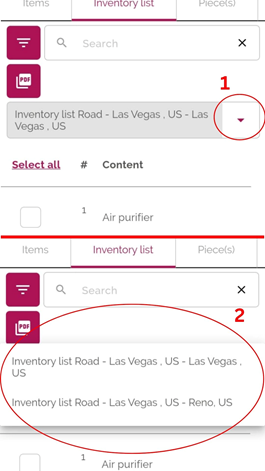
- Each destination will have its own set of documentation.
- Don’t forget to finalize your task once your job is complete so that all information is uploaded to the Move4U system.