![Move4U.png]](https://support.move4u.com/hs-fs/hubfs/Move4U.png?height=30&name=Move4U.png)
Steps
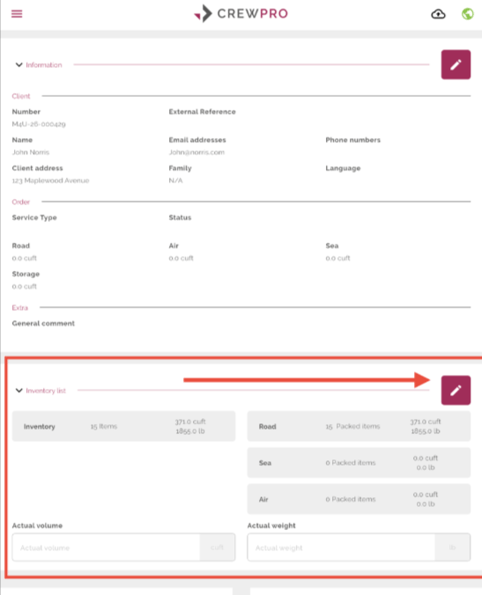
- Open the task and navigate to Inventory List.
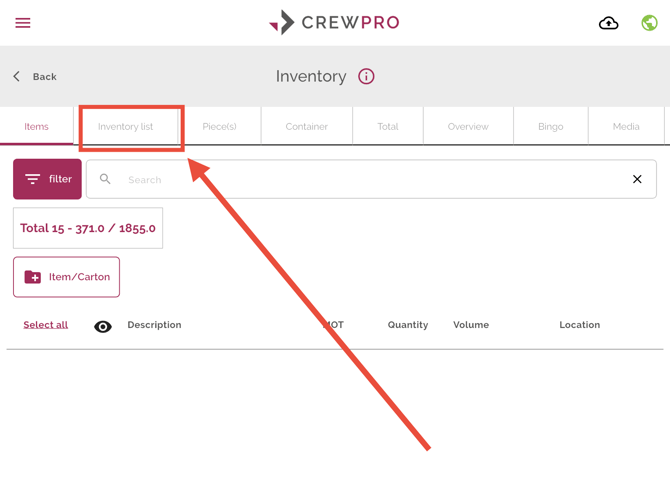
- Select Inventory List again to display all packed items.
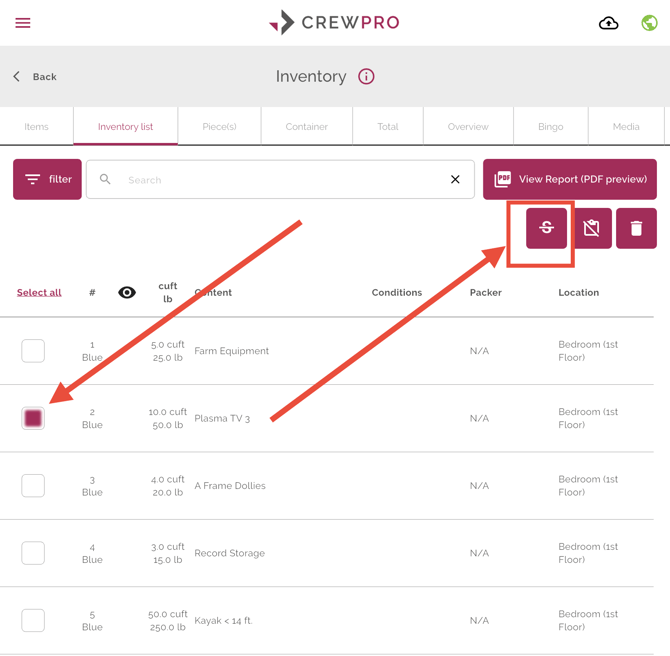
- Locate the item you want to void and select the item.
- Once the item is selected, three icons will appear at the top of the screen.
- Tap the first icon, Void Item.
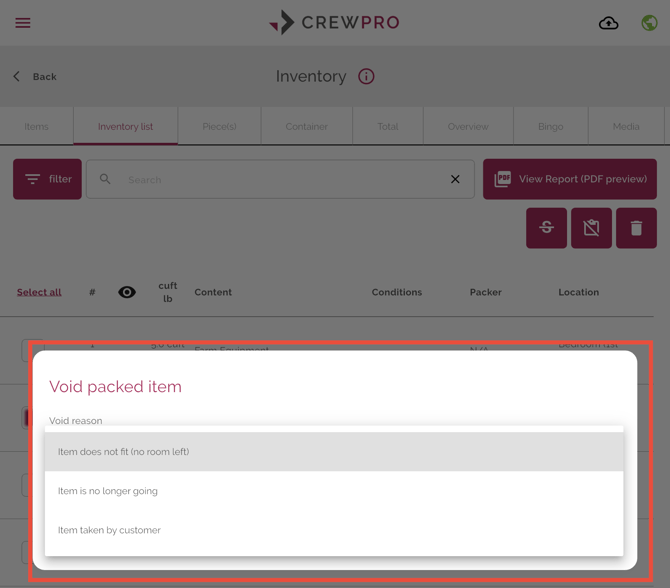
- A list of void reasons will be displayed. Select the reason that best matches your situation.
- The item will now appear crossed out in the inventory list, indicating that it has been successfully voided.
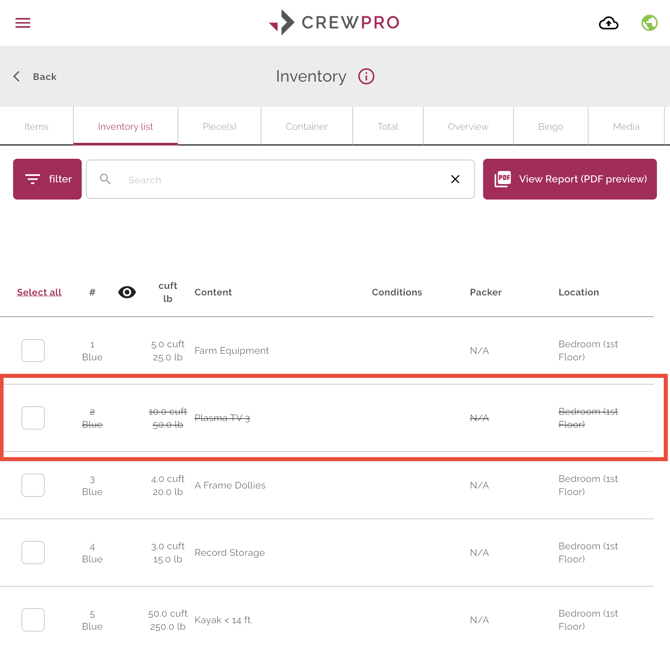 The selected item will remain visible in the inventory list with a strikethrough, indicating that it has been voided.
Verify that you have selected the correct item before voiding it.
Choose the void reason that best describes why the item is being removed.
Use the Void Item option instead of deleting an item whenever you want to preserve the sticker sequence.