![Move4U.png]](https://support.move4u.com/hs-fs/hubfs/Move4U.png?height=30&name=Move4U.png)
How to Assign a License to a Company
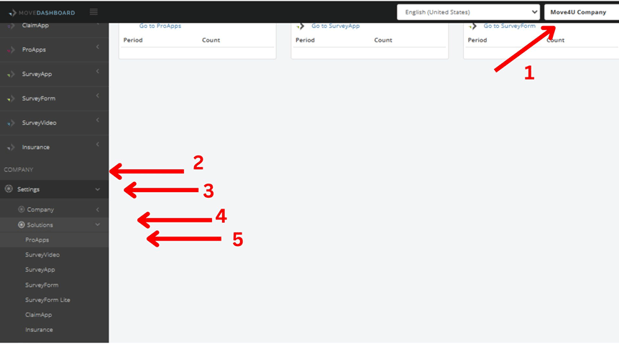
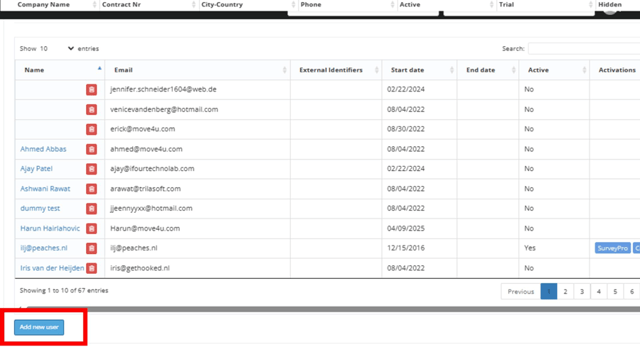
1. Add the User to the Company Environment- Go to COMPANY → Settings → Solutions → Pro Apps.
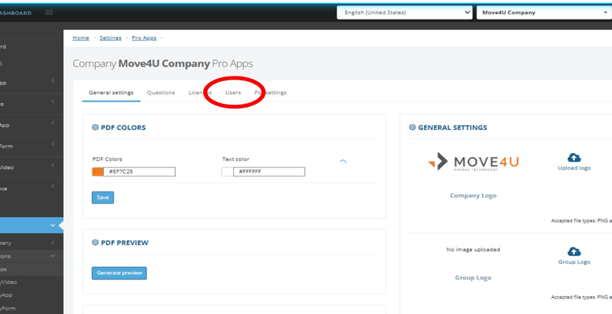
- Open the Users tab.
- Click on Add new User.
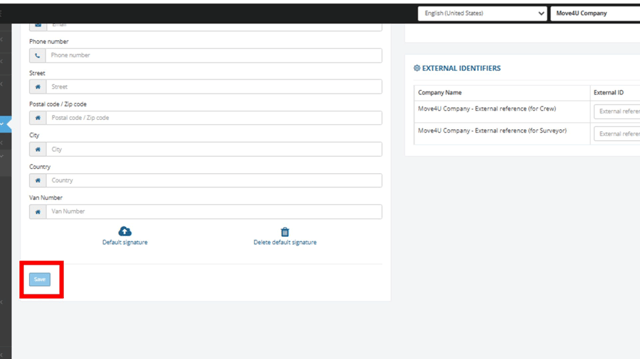
- Fill in the user details.
- Click Save to add the user.
. 2. Check License Availability
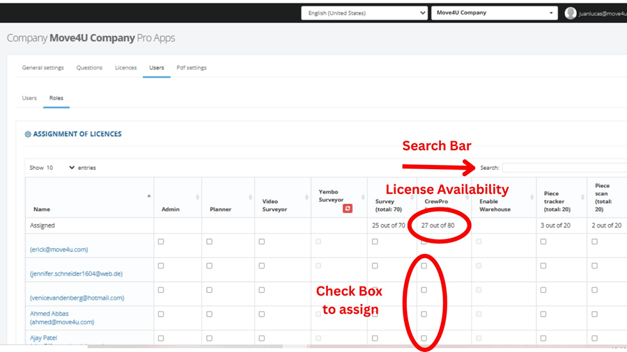
In the same section, go to the Roles tab. Verify if the company has available licenses.
If licenses are available:
- Use the search bar to find the newly added user.
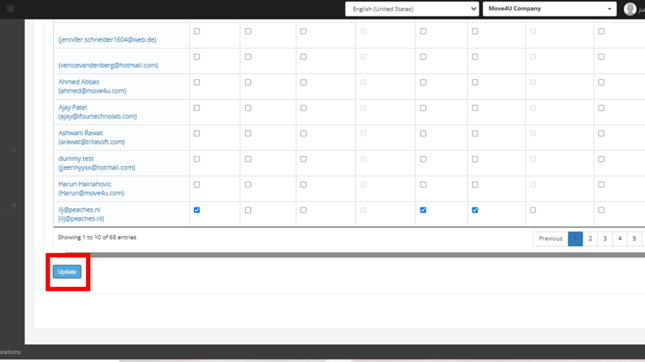
- Assign the required application license by checking the corresponding box.
- Click Update to save changes.
- Refresh the page.
- Go to the Licenses tab to view the user's activation code.
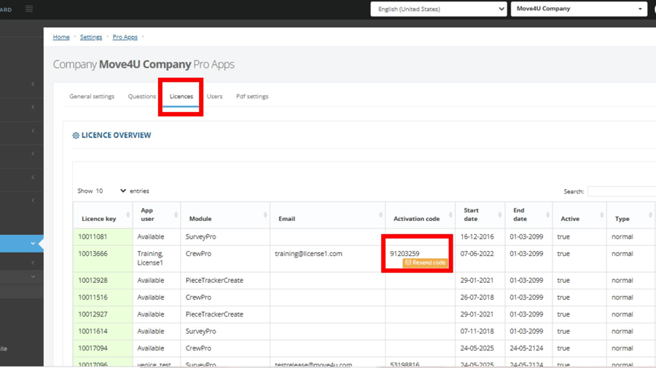
3. If No Licenses Are Available
If the company has no available licenses, reach out to support@move4u.com to add new ones to your set and add them from the Move Dashboard.
How to Delete a License from a company
- Go to COMPANY → Settings → Solutions → Pro Apps.
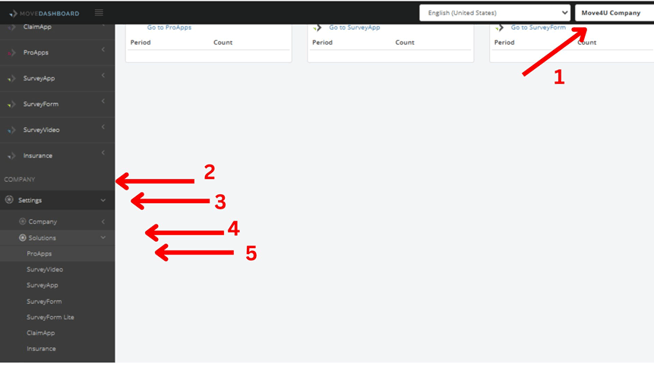
- Go to the ‘Users’ tab and select ‘Roles’ to uncheck the role of the person you want to remove.
- Press Update and the license will be revoked and ready to be assign to a new user.
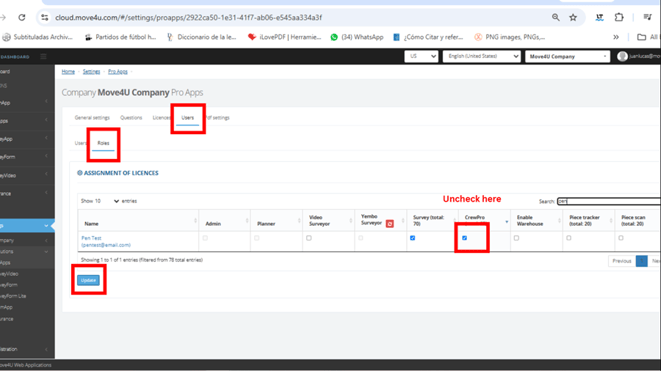
- After this, to permanently delete the user from your system:
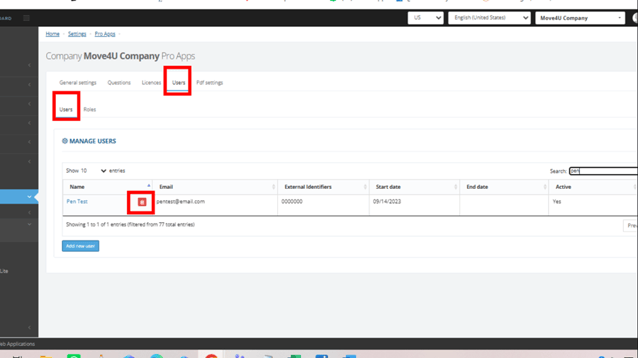
- Go to the ‘Users’ tab and press the trash bin button to delete the user
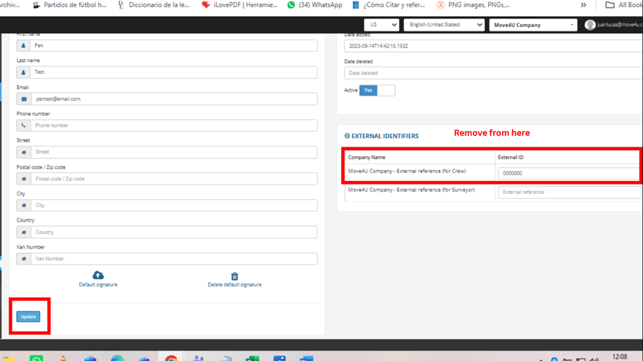
- (if the user has any external identifiers, remove it before deleting the user by tapping on them and delete the identifier to finally press Save)