![Move4U.png]](https://support.move4u.com/hs-fs/hubfs/Move4U.png?height=30&name=Move4U.png)
1. Turn on the room description pop up
Go to Settings > Additional Preferences and uncheck "Do not show room description pop up".
With this active, the app will ask you for a description the first time you save an item in a room that is not yet part of the inventory.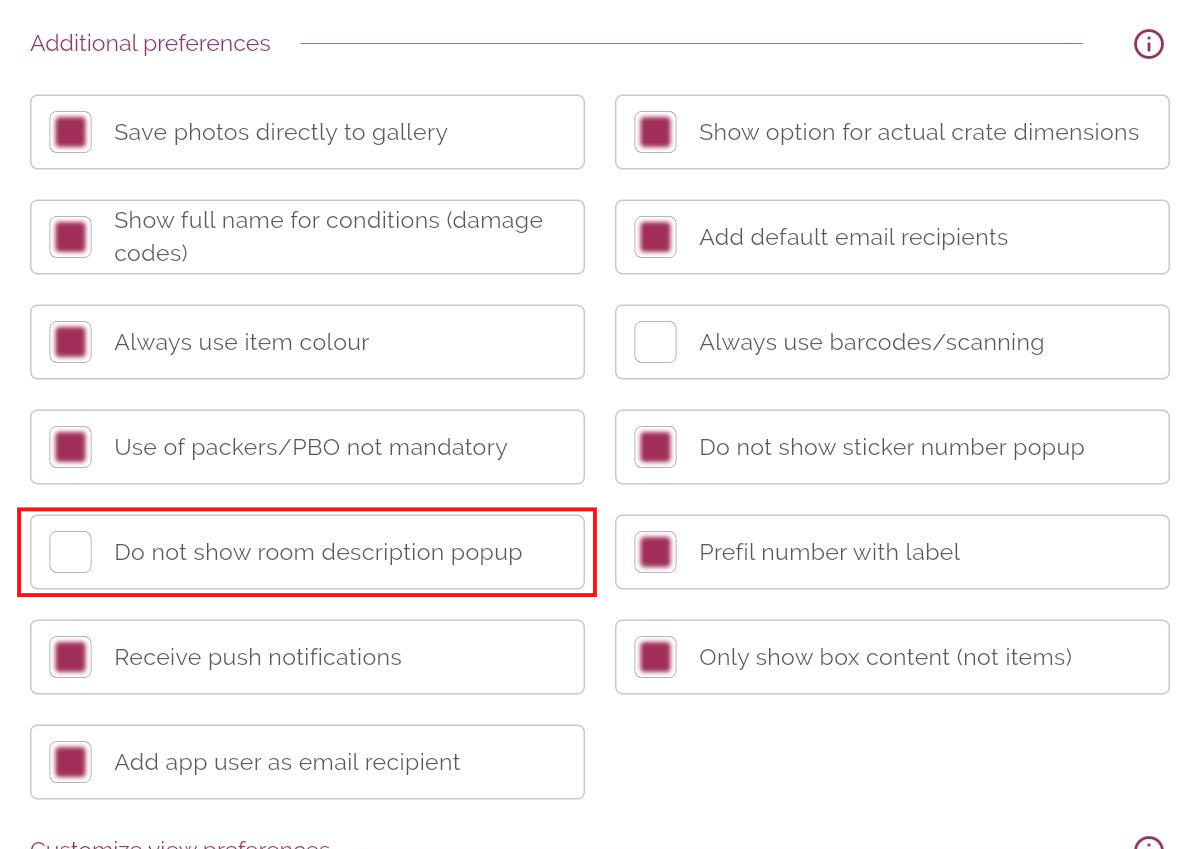
2. Add a description while building the inventory
Start building your inventory and add an item or box. When you save it in a room that has not been used yet, the description pop up appears:
Example: a house with several bedrooms, and you want each one labelled with the name of the person who uses it. Select the room Bedroom, then type Jack's Bedroom in the pop up. The packing list will show it as:
Bedroom - Jack's Bedroom: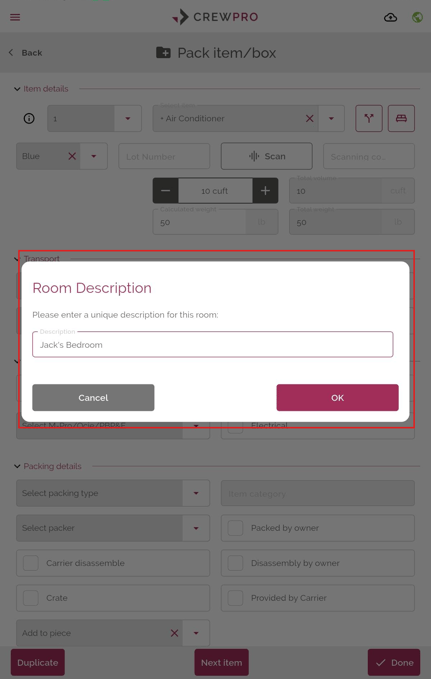
Result in the report:
3. Rooms that are not on the list
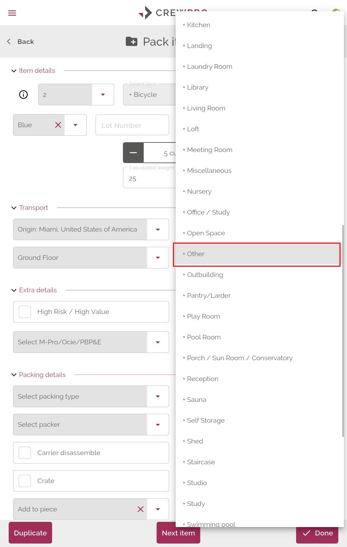
If you need a room type that does not exist in CrewPro, use the room Other and add the description yourself.
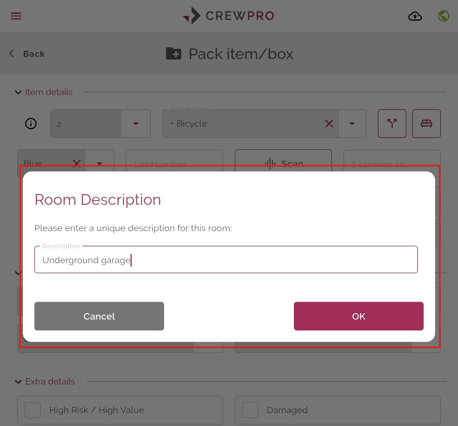
Example: a bike stored in an underground garage. Select the room Other, then add the description Underground Garage:
1.
2. 
4. Edit a description later
You can change a description after the room has been saved:
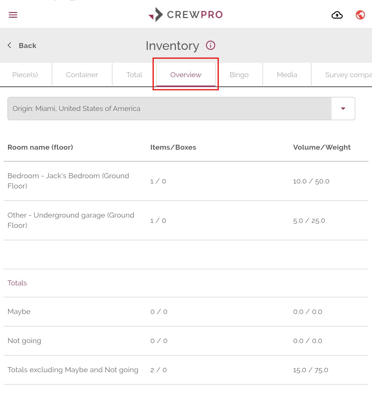
- Open the Overview tab inside the inventory page
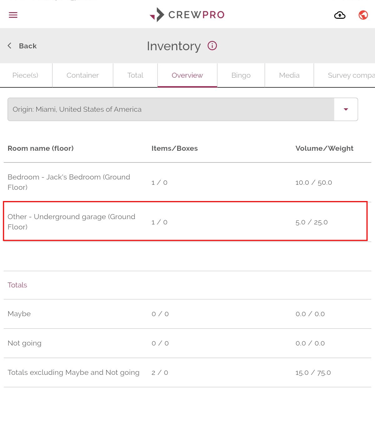
- Select the room you want to update
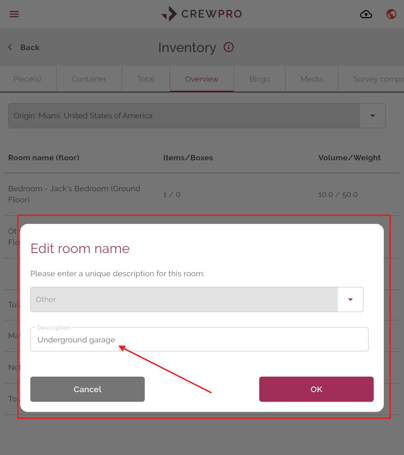
- The pop up opens and you can edit the description
If you have any questions or doubts, please don't hesitate to reach out to your support team. Email to support@move4u.com, submit a ticket, start a chat or
dial +31 97 010 257 939 (EU) +1 206 222 1851 (US)