![Move4U.png]](https://support.move4u.com/hs-fs/hubfs/Move4U.png?height=30&name=Move4U.png)
Step 1: Open the Delivery Task
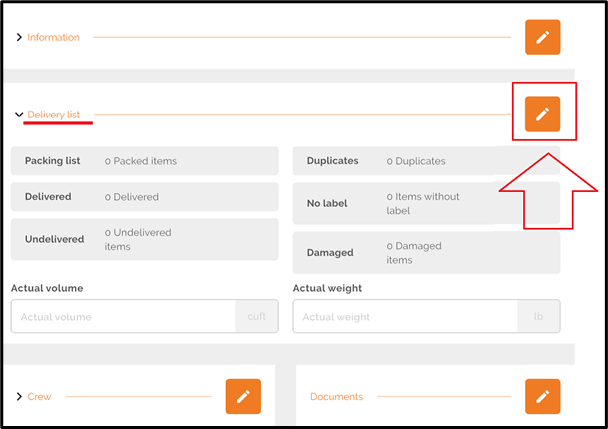
Once inside the delivery task, scroll down until you find the Delivery List section.
Then, click on the pencil icon to edit it.
Step 2: Access the Inventory Screen
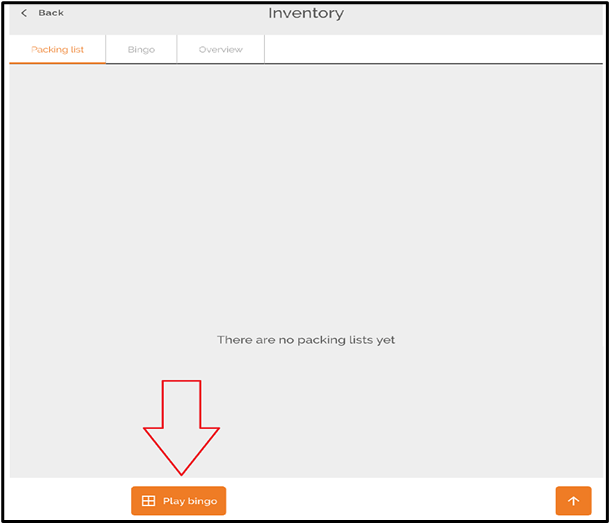
You will be redirected to a new tab where you will notice that no inventory has been added.
To begin adding inventory, click on the “Play Bingo” button.
Step 3: Configure the Inventory Range
After clicking the “Play Bingo” button, you will need to define the inventory range:
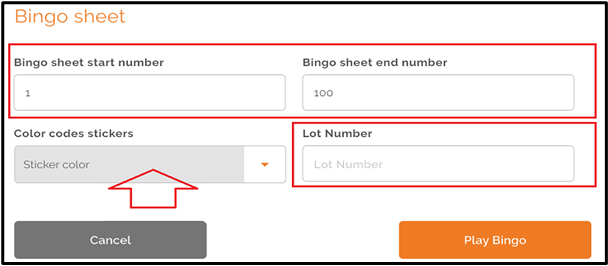
- Select a Start Number
- Select an End Number
For example:
If you choose 1 as the start number and 100 as the end number, a total of 100 items will be created.
You can also:
- Select a sticker color from the Color Code Stickers dropdown
- Enter a lot number (optional) in the last field
Step 4: Generate the Inventory
Once all fields are completed, click the “Play Bingo” button to generate the inventory.
You will then be redirected to a new screen.
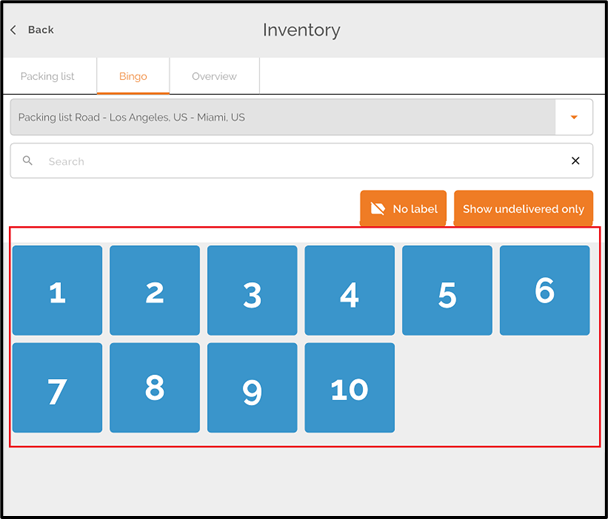
Step 5: Deliver the Items
On this screen, you can deliver items by simply tapping the item numbers.
Step 5: Report
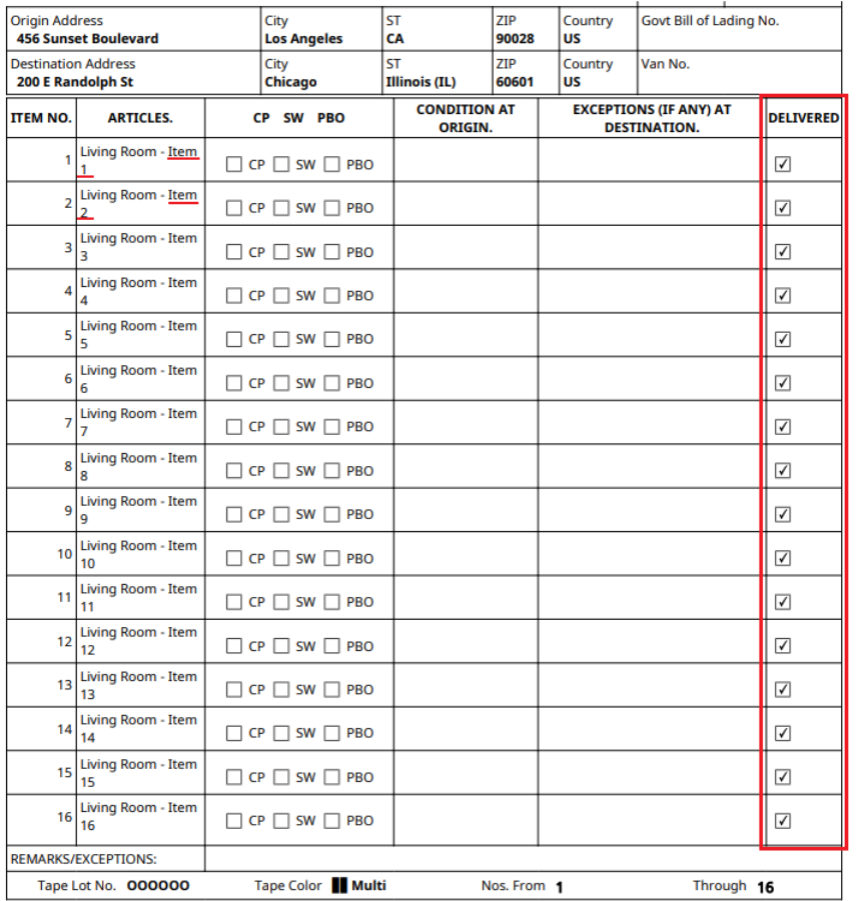
The inventory within the report will be presented in a clear, structured, and sequential format, displaying items as Item 1, Item 2, Item 3, and continuing in order up to the final item. This numbering directly corresponds to the sequence selected during the delivery task.
Additionally, next to each item, there will be a corresponding delivery checkbox. This box will be marked or selected only in cases where the item has been successfully delivered using Crew Pro.