![Move4U.png]](https://support.move4u.com/hs-fs/hubfs/Move4U.png?height=30&name=Move4U.png)
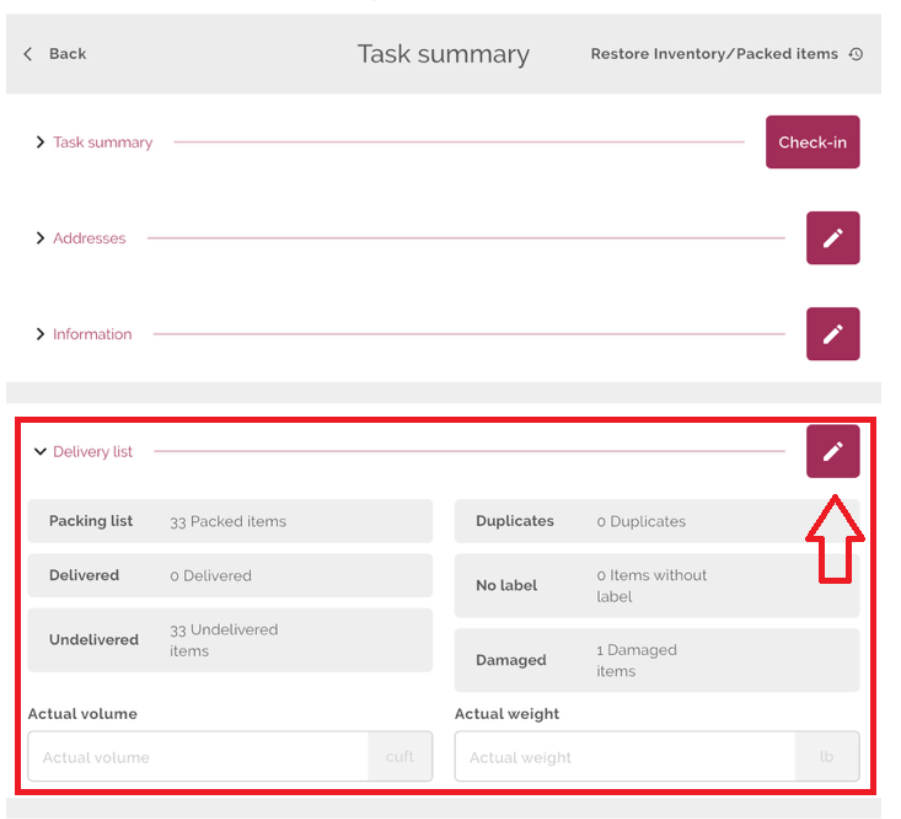
When you are inside a delivery task, go to the Delivery List section and click the pencil icon.
Bingo Subtab
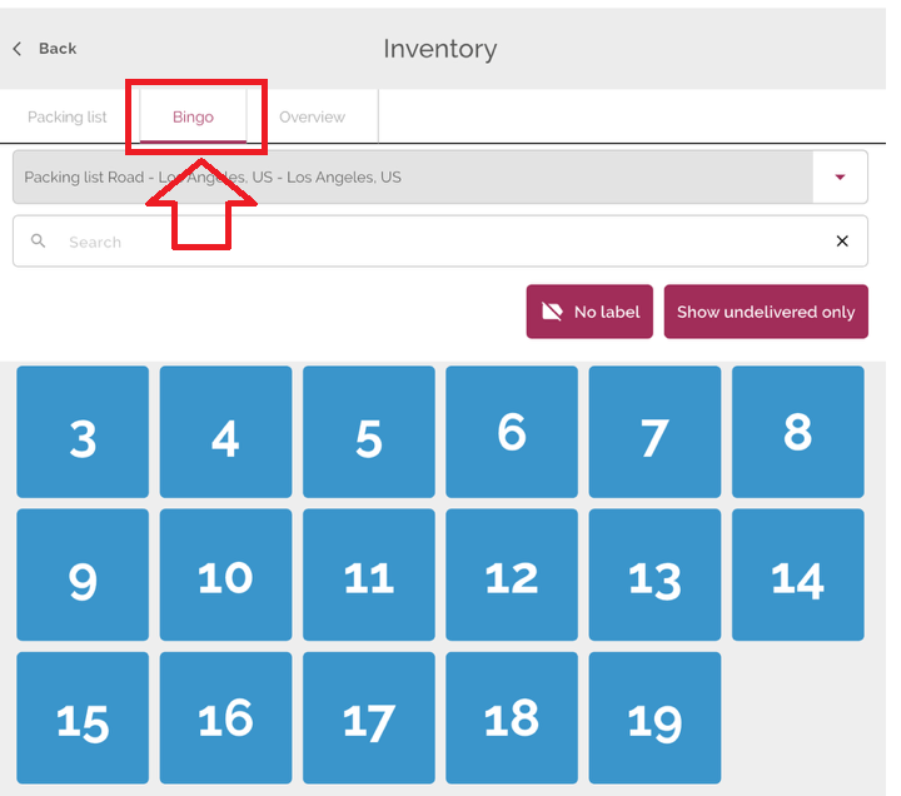
Tap on the Bingo subtab to view all items organized by sticker number and color.
To mark an item as delivered, simply tap on each number. It will turn grey, indicating that the item has been successfully delivered.
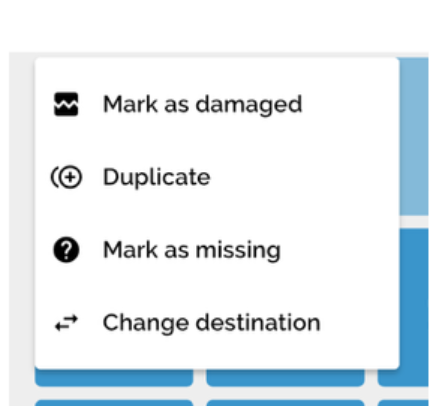
If you long-press a selected number, four options will appear:
Mark as Damaged
In this screen, you can:
- Add item conditions
- Upload a photo from your gallery
- Take a photo using your camera
- Add general comments
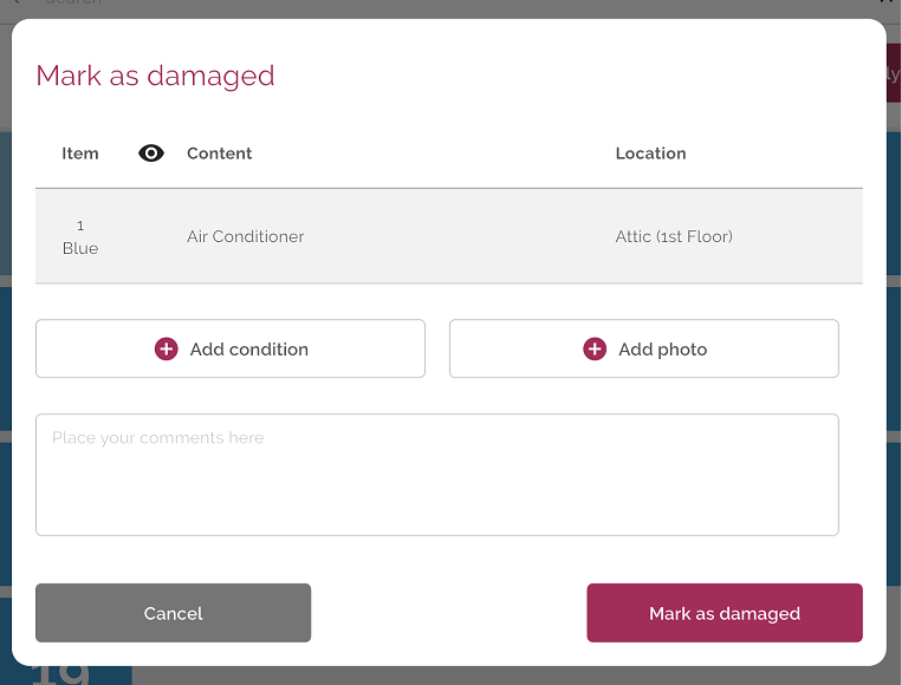
Once completed, click “Mark as damaged” to save the changes.
Mark as Missing
In this screen, you can:
- Add general comments
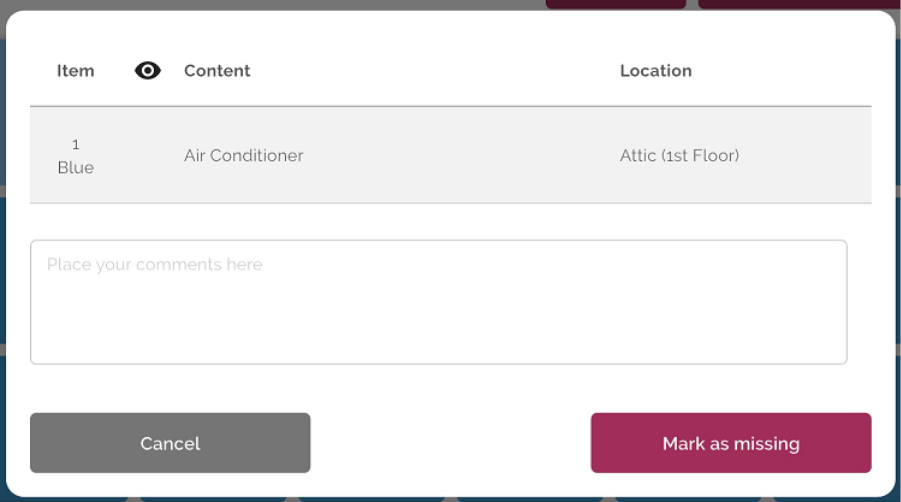
Once completed, click “Mark as missing” to save the changes.
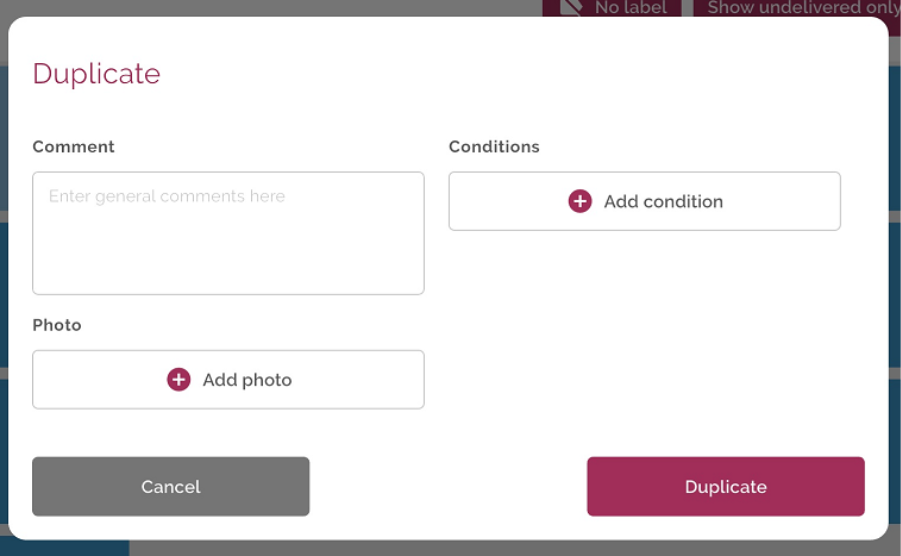
Mark as Duplicate
In this option:
- You will have similar functionalities as the other screens
- The main difference is that the system will create two items/cartons with the same sticker number and color, marking them as duplicates
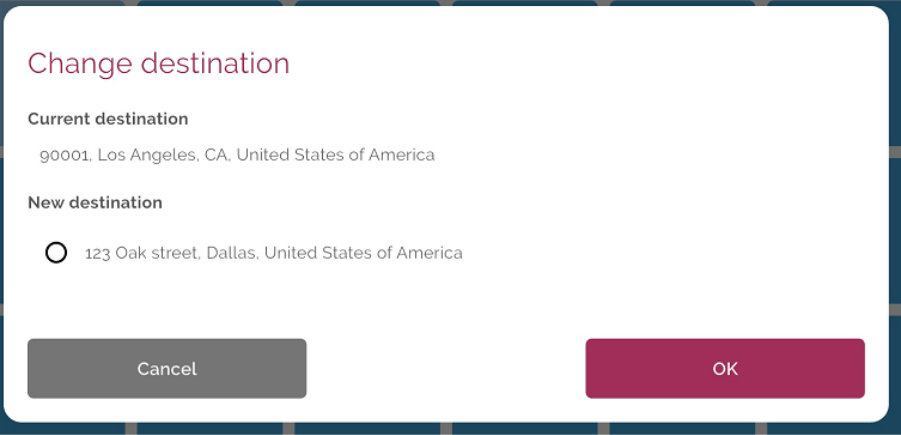
Change Destination
From this screen, you can:
- Select a new destination for the item/carton
Deliver All Items
In case you want to complete everything at once, you can use the “Deliver All” button available in the first subtab.
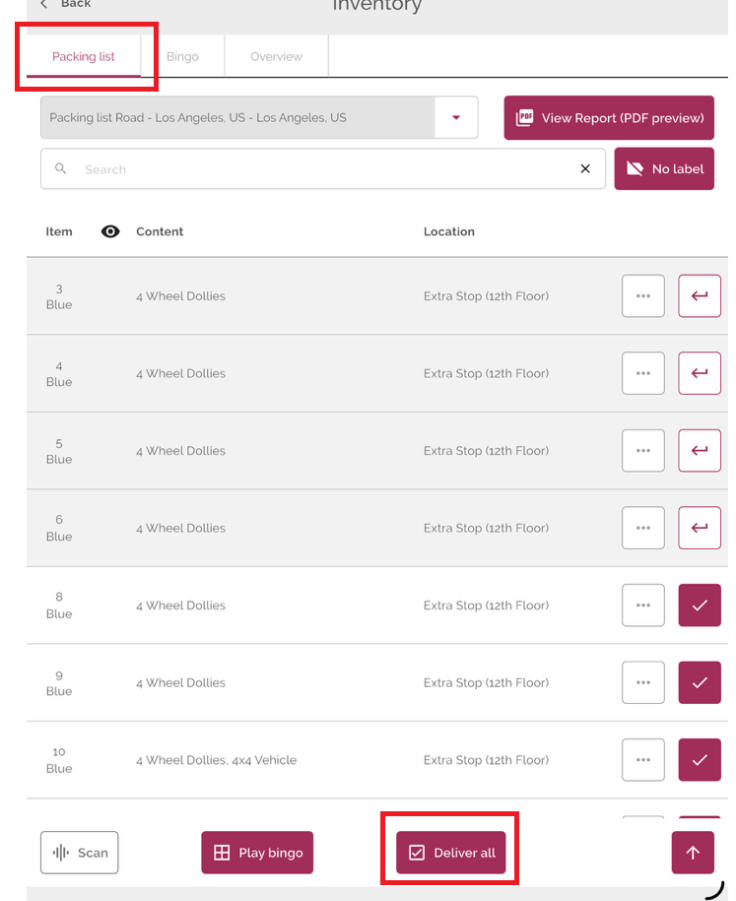
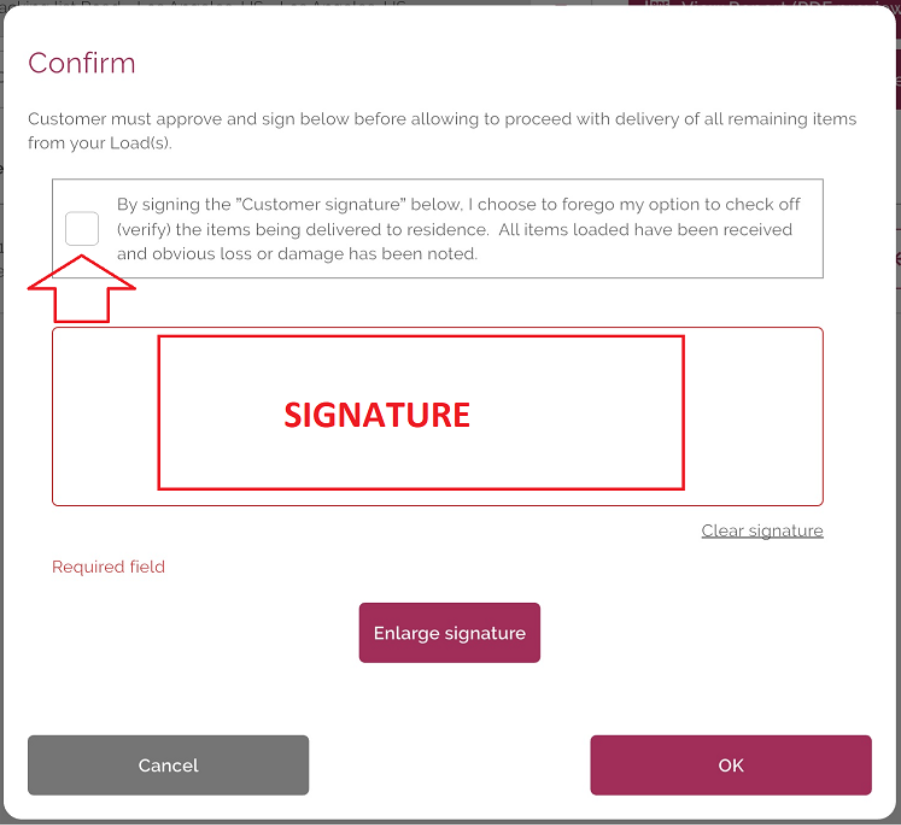
Once you click the "Deliver All" button, it will display a screen to select the disclaimer, then collect the customer's signature.