![Move4U.png]](https://support.move4u.com/hs-fs/hubfs/Move4U.png?height=30&name=Move4U.png)
Enable the “Provided by Carrier” option in Settings
Before packing boxes, make sure this option is enabled in your settings.
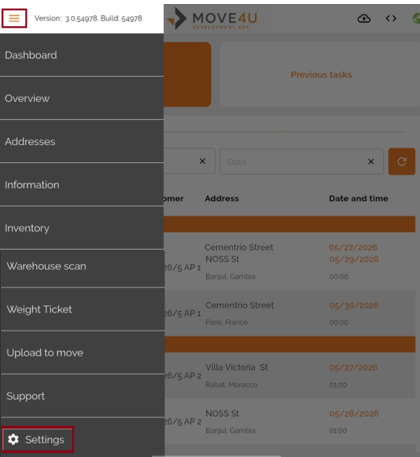
1. Open Settings: Click the three lines in the upper left corner and select “Settings.”
2. Go to the “Customize Screens” section and click the pen icon next to “Inventory/Pack Screens.”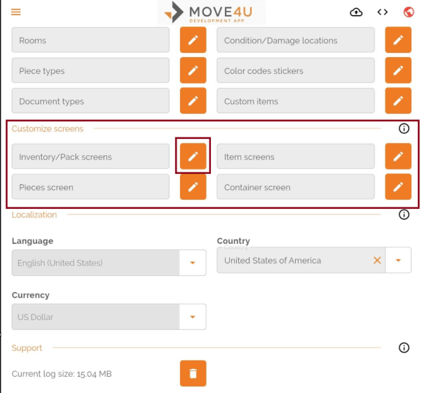
3. Inside “Inventory/Pack Screens,” scroll down until you find the “Packing Details” section.
4. Make sure the “Provided by Carrier” option is selected.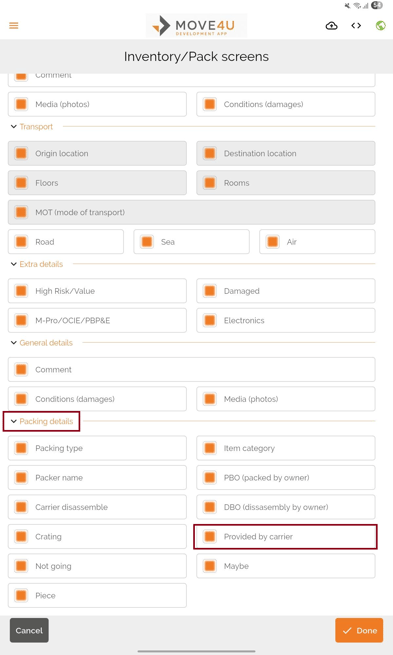
Pack a box as CP
1. Go to the move you will be working on and enter the Inventory List.
2. Start packing a box: Click “Item/Carton” and select the option to pack boxes.
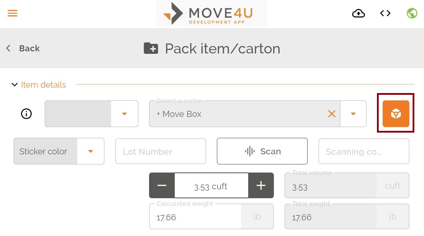
3. Select the box type, complete the required information, and scroll down to the “Packing Details” section.
4. Verify the CP option: You will notice that “Provided by Carrier” is selected by default.
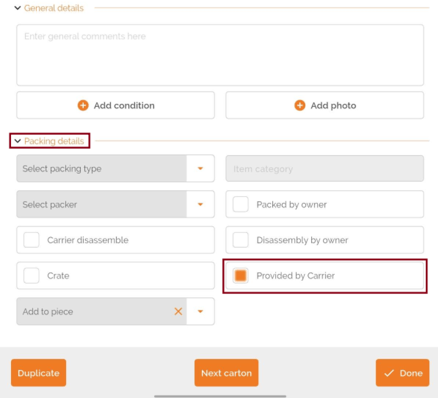
5. Be aware of the default behavior: If at any point you mark a box as “Packed by Owner” (PBO), that option will remain as the default for the following boxes unless you manually change it back to “Provided by Carrier.”
Note
Although CP is the default option when packing boxes, this option does not apply to items.
Even if you manually mark an item as CP, this will not be reflected in the descriptive inventory. Only boxes can be properly categorized as CP in the descriptive inventory.