![Move4U.png]](https://support.move4u.com/hs-fs/hubfs/Move4U.png?height=30&name=Move4U.png)
You can tell if a task has been downloaded by looking at the left side of the task. If you see a black or colored dot, the task is currently downloaded on your device.
If there is no dot next to the task, the task is not downloaded, so simply refreshing the screen should be enough to get the latest information.
If the task has a black or colored dot, follow the steps below to re-download it.
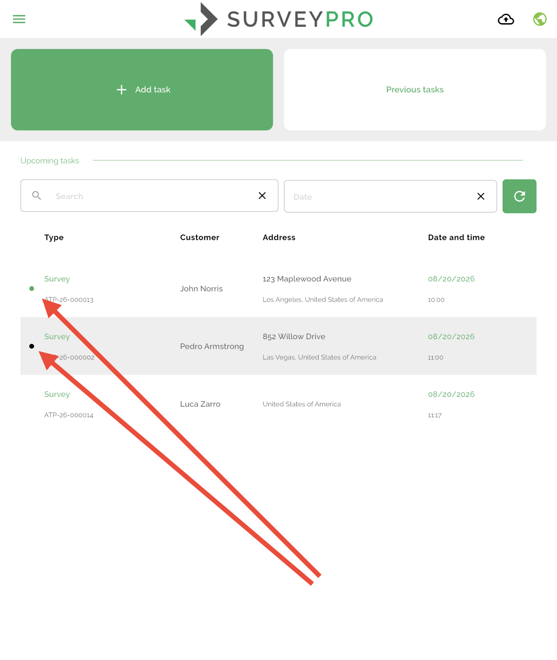
- Locate the task you want to re-download.
- Check the left side of the task to see if it has a black or colored dot.
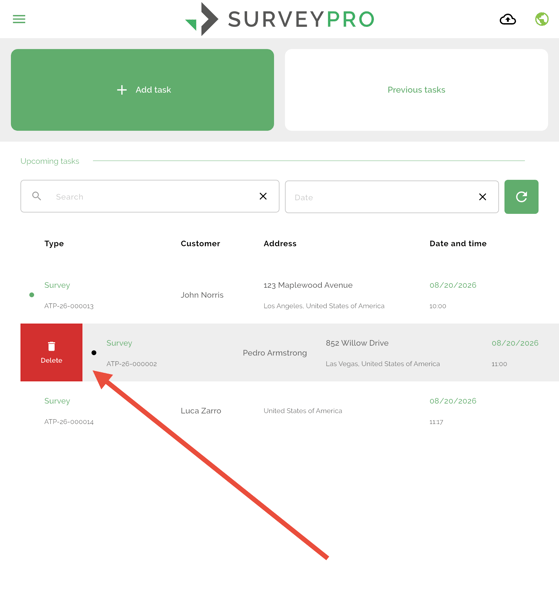
- If the task has a dot, swipe the task to the right.
- The Delete option will appear. Tap Delete.
- Confirm the deletion.
Don't worry, this will not delete the task from the system. The task will remain visible in your task list.
Refresh the task list., wait a few seconds for the task list to update, open the task again.The task will now be downloaded again to your device with the latest available information.
If the task still does not show the updated information after re-downloading it, please contact the Move4U Support Team so we can take a closer look at the task.