![Move4U.png]](https://support.move4u.com/hs-fs/hubfs/Move4U.png?height=30&name=Move4U.png)
If the paperwork didn’t reach Atlas Net, there is a way in which you can send all the documents form the Move Dashboard. Remember that, in order to do it within the Move Dashboard, you must have the admin role. To confirm your status, you can reach out to our support team (support@move4u.com)
- In the Move Dashboard, open the file for which you want to resend the documentation and select the Move Integration tab.
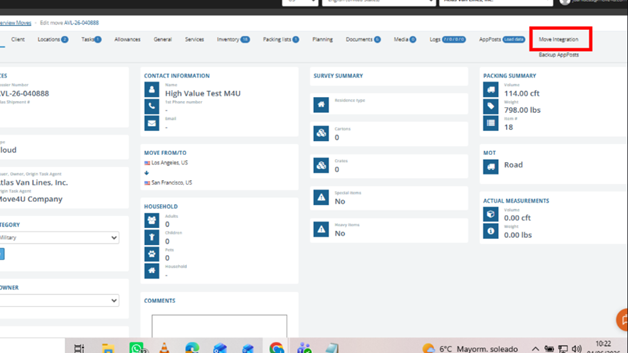
- Once the Move Integration tab is open, select Callbacks and click the Load Data button.
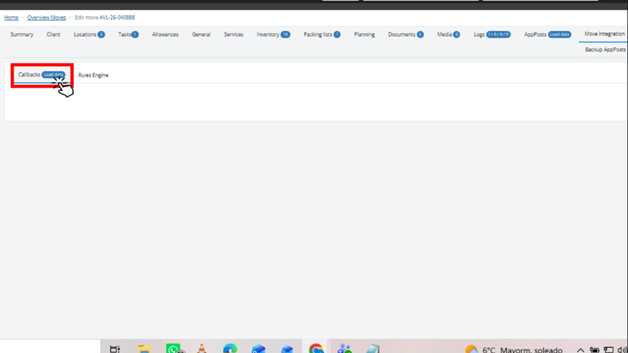
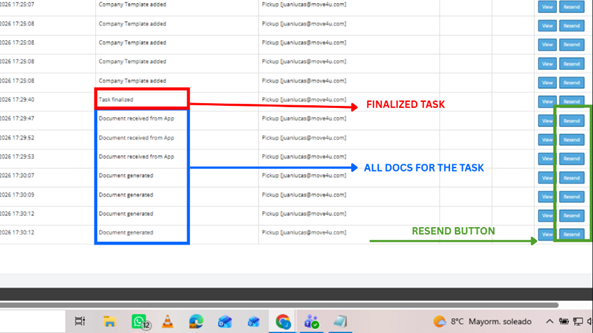
- This will load all integration posts. To resend the paperwork, locate the Task Finalized post for the relevant job. Below it, you will find the document-related posts, such as Document Received from App and Document Generated. For example, if the pickup documents are missing, first find the Task Finalized post for the pickup task and then locate the document posts listed beneath it.
- Click the Resend button for each document (only once). Before proceeding to the next document, make sure you see the green confirmation popup indicating that the callback was successfully sent. (NOTE: If you want to send paperwork back to ACE, just press the Resend button of the Task Finalized post, as this will send the documents back to ACE.)
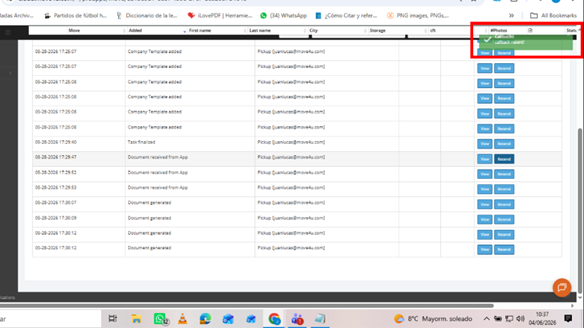
After a few seconds, the documents should become visible in Atlas Net.
NOTE: In some documents, you can use the 'View' button to see the document's name and only resend that one.
.jpg?width=669&height=376&name=screen%2017-06-26%20(2).jpg)