![Move4U.png]](https://support.move4u.com/hs-fs/hubfs/Move4U.png?height=30&name=Move4U.png)
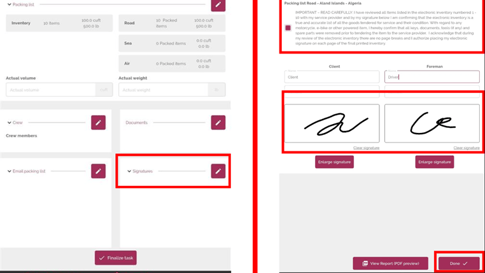
Step 1: Open the Signatures Section
- Go to the Signatures section.
- Open it to access the signature fields.
Step 2: Accept the Disclaimer
- Inside the Signatures section, you will see a disclaimer message.
- The client must read and accept the disclaimer by checking the box provided.
Step 3: Collect the Signatures
- Below the disclaimer, you will find two signature fields:
- The left signature field is for the client
- The right signature field is for the driver
- Collect both signatures.
Step 4: Save the Signatures
- Once the disclaimer has been accepted and both signatures have been collected, press Done.
- This will save the progress automatically.
The saved signatures will automatically appear on the inventory documents.
How to Preview the Inventory PDF
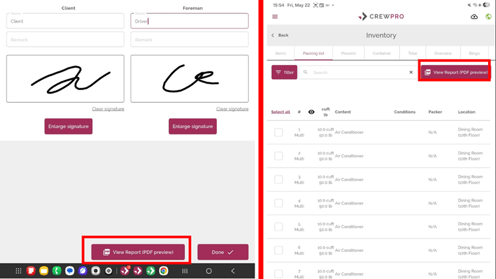
If your file is properly configured, you can preview the inventory in PDF format using either of the following methods:
Option 1: From the Inventory List
- Go to the Inventory List section.
- Press the Overview PDF button.
Option 2: From the Signatures Section
- Stay inside the Signatures section.
- Press the Overview button located at the bottom of the screen.
Important
These signatures are also required to finalize your task successfully. Without them, the task cannot be completed.