![Move4U.png]](https://support.move4u.com/hs-fs/hubfs/Move4U.png?height=30&name=Move4U.png)
Option A: From the Task (Reports Section)
Important: The task must not be finalized.
1. Open the task you are currently working on.
2. Inside the task, navigate to the Reports section and click on the pen icon.
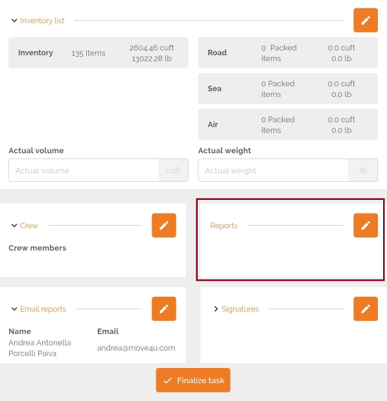
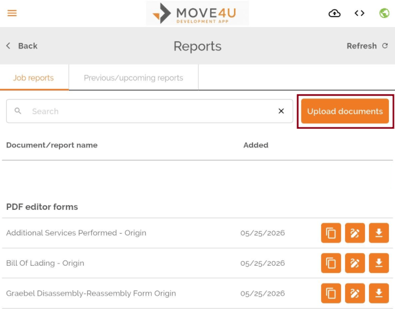
3. Click the “Upload Documents” button located in the upper right corner.
4. Under “Select Document Type,” choose “Weight Ticket.”
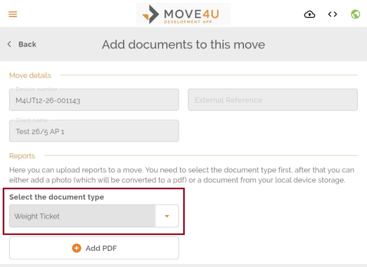
If you do not see this option, please contact support.
5. Add the document
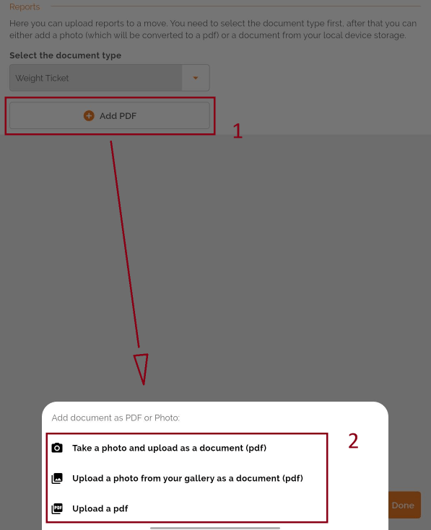
Once “Weight Ticket” is selected, the “Add PDF” button will become available.
After clicking it, you will see the following options and select one:
-
Take a photo and upload it as a PDF
-
Select a photo from the gallery and upload it as a PDF
-
Upload a PDF directly
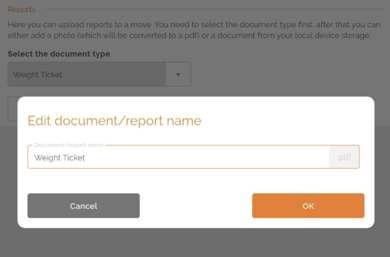
6. After uploading the document using the option you selected, you will also have the opportunity to edit the document name before saving it.
7. Edit the document (optional)
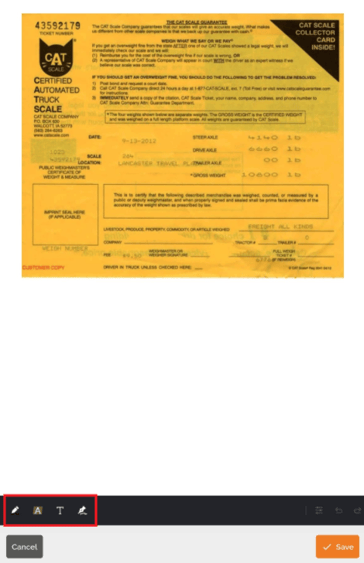
Before saving, you may:
-
Add text
-
Add signatures
-
Highlight important information
Important: This will be your only opportunity to edit the document.
8. Verify the document
Once saved:
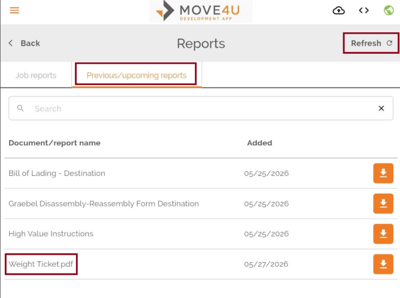
- You will be able to see it in the reports section under the “Previous/Upcoming Tasks” tab. (If you don´t see it, click the refresh option on the top right corner)
- After the task is finalized, your office will be able to access it from the Documents tab on the MoveDashboard
Option B: From the Sidebar
The task may be finalized or not finalized.
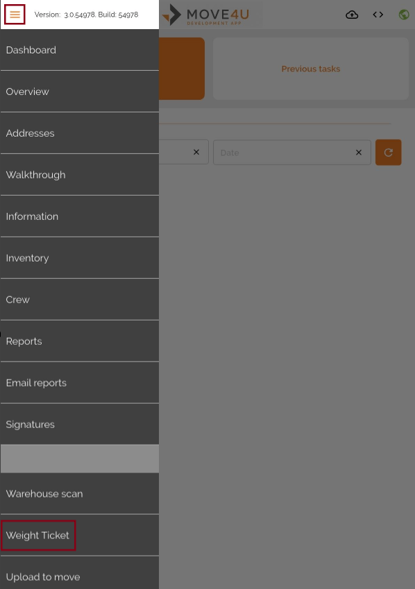
1. Click the three lines in the upper left corner and select the “Weight Ticket” option.
2. Search for the move using:
-
The Registration Code
-
The customer number or customer name
3. Add the Weight Ticket
Select the move and click the “+ Add Weight Ticket” button.
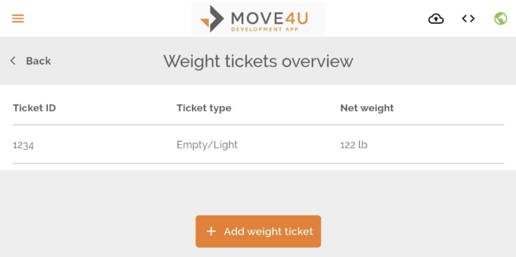
4. Complete the required information
Some fields are mandatory:
-
Ticket Type: Empty / Full / Re-weight
-
Ticket ID
-
Gross Weight
-
Tare Weight
-
Net Weight (Fills in automatically when you enter the gross and tare weights)
5. Upload the document
You will then have the option to upload the Weight Ticket:
-
By taking a photo
-
Or by uploading it as a PDF
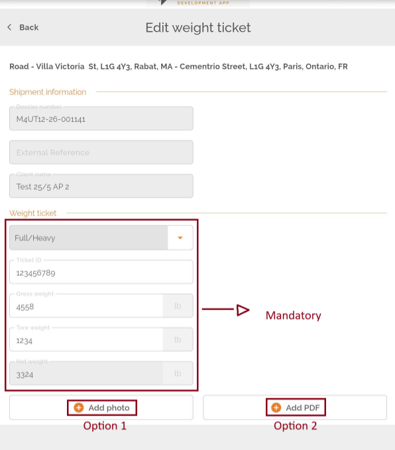
6. Edit the document (optional)
Before saving, you may:
-
Add text
-
Add signatures (only on pdf)
-
Highlight important information
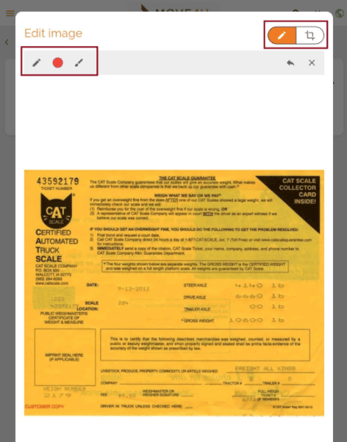
7. Verify where the document was saved
-
If the Weight Ticket is uploaded as a photo, your office will be able to view it under the Media tab
-
If it is uploaded as a PDF, it will be available under the Documents tab
Common Issues:
I submitted my weight ticket. Where do I find it?
There are two ways to check, depending on how your company works:
Option 1: Via your company's system (integration users)
If your company uses an integration, the weight ticket should show up there. If you don't see it, follow these steps:
- Go to MoveDashboard
- Search for and open the relevant file
- Go to Packing List and click on the available packing list
- Inside the packing list, open the Weight Ticket tab
- Your weight ticket details should be visible there
Option 2: Via photo or document upload
- If you uploaded a photo, it will appear under Media
- If you uploaded a PDF, it will appear under Documents
My weight ticket is still not there. What should I do?
First, check that your phone has an internet connection. The upload requires an active connection to go through.
If you're online and the weight ticket still hasn't shown up after 15 minutes, contact our support team through the live chat and an agent will look into it for you.