![Move4U.png]](https://support.move4u.com/hs-fs/hubfs/Move4U.png?height=30&name=Move4U.png)
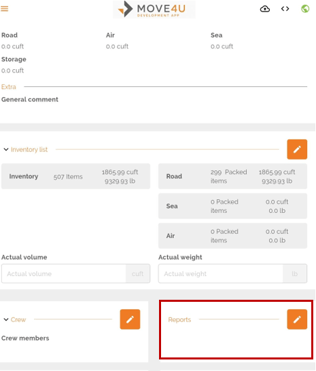
- Start by opening the task you want to work on and navigating to the Reports section.
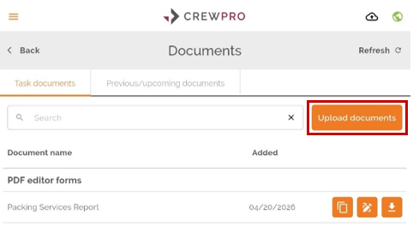
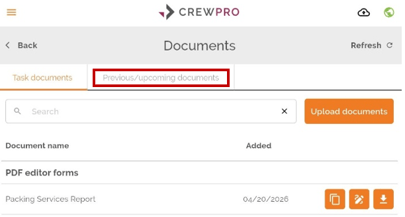
- Once there, look to the right side of the search bar at the top of the page, where you'll find the "Upload Documents" button.
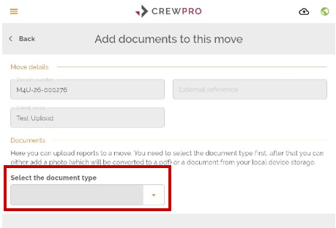
- Click on it and you'll be prompted to select the type of document you'd like to upload. If none of the available categories match what you need, go ahead and use the miscellaneous option.
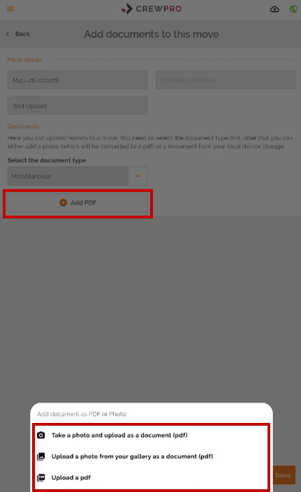
- After choosing your document type, click "Add PDF." From here, you have three options: take a photo, upload one from your gallery, or upload a file directly. Don't worry about the format, as all three options will automatically be converted to PDF.
- Once you've selected your file, you'll be asked to give the document a name. After that, you'll have the opportunity to edit it before saving. The editing tools let you add signatures, highlight text, write in different colors, and insert text boxes wherever you need them.
- Once you've made the necessary edits, click Save. You'll be taken to the "Add Documents to This Move" page, where you can either upload additional documents or click Done to finish.
- Your uploaded documents will be available in the Reports section, under the Previous/Upcoming Reports tab, whenever you need them.
If you have any questions or doubts, please don't hesitate to reach out to your support team. Email to support@move4u.com, submit a ticket, start a chat or
dial +31 97 010 257 939 (EU) +1 206 222 1851 (US)