![Move4U.png]](https://support.move4u.com/hs-fs/hubfs/Move4U.png?height=30&name=Move4U.png)
Step 1: Make Sure the Previous Task Was Finalized
- If you were doing the previous task:
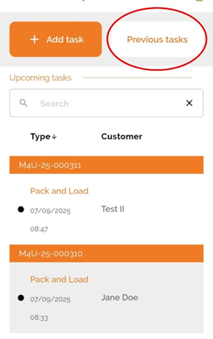
- Go to the Main Menu and tap on Previous Tasks.
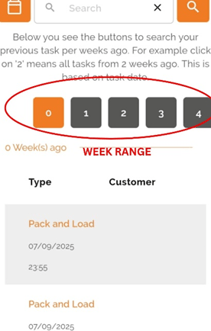
- Select the week where the previous task was performed on the week’s range and check if you cant see previous task.
- If someone else from your company completed it:
- Contact your team or office to confirm whether the task was properly finalized.
Step 2: Delete the Current Task
If the previous task was finalized, but you still can’t see the inventory:
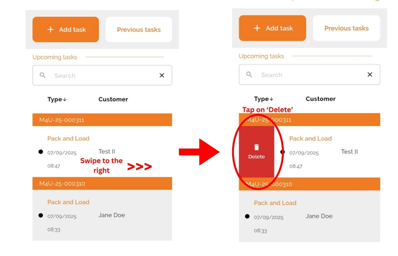
- Swipe the current task to the right.
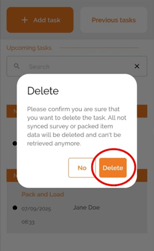
- Tap the trash bin icon with ‘Delete’ beneath it.
- This will clear the task memory and trigger a refresh of the task data.
Step 3: Refresh Your Task List
- Once the message about local task memory disappears, you’ll be back to the Main Menu.
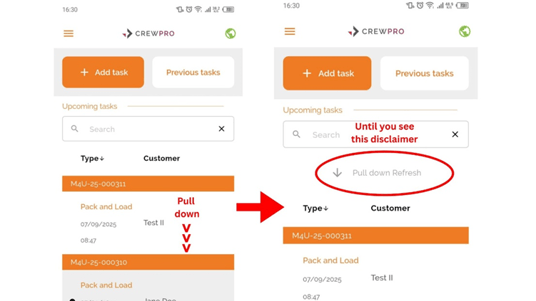
- Pull down on the screen until the Refresh icon appears and activates.
Step 4: Open the Task Again
- Once the task reappears, tap to enter it.
- The inventory from the previous task should now be visible.
- You can now continue working normally.