![Move4U.png]](https://support.move4u.com/hs-fs/hubfs/Move4U.png?height=30&name=Move4U.png)
First, keep in mind that an internet connection is required to finalize a task. If you don’t have one, the app will display a reminder message about this.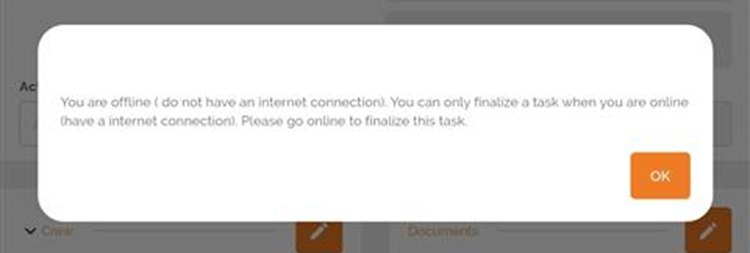
Once a task is finalized, a screen will appear instructing you not to minimize the app or disconnect from the internet. This is because, at the moment of finalization, all the information is processed and sent to the system, where your office will receive the results of your work within seconds.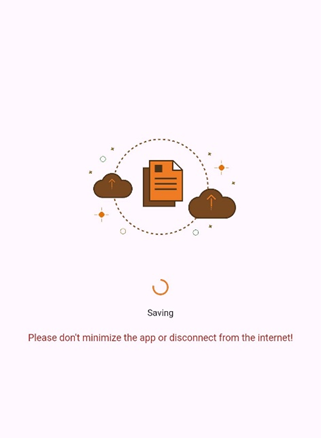
For this reason, it’s important to remain in the app until the completion message disappears and you are taken back to the “Upcoming Tasks” menu. At that point, the task you just finalized will no longer appear on your device, this confirms that it was successfully finalized.
If you exit the app or lose your internet connection during this process, there is a chance that the information may not fully reach the system and could get “stuck” on your device.
Likewise, the finalized task will be available under the “Previous Tasks” tab, where you can browse based on the week the task was scheduled. In this section, you’ll be able to review all your work, from the inventory to the documents.
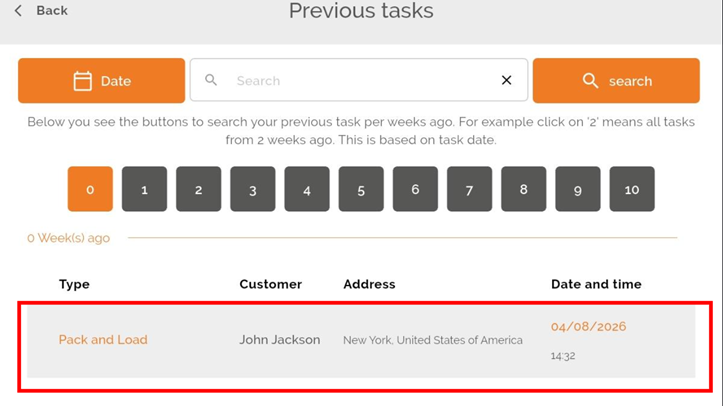
Keep in mind that this will only be a preview version of the task, you won’t be able to edit any of the information. If any changes are needed, the correct procedure is to have a new task assigned to your device.