![Move4U.png]](https://support.move4u.com/hs-fs/hubfs/Move4U.png?height=30&name=Move4U.png)
This is the pop-up you may see when trying to finalize the task: 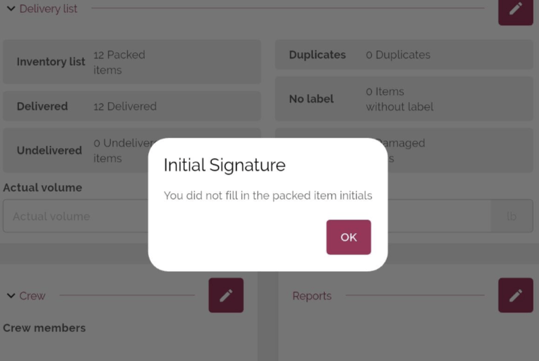
To resolve this:
- Open the Signatures section.
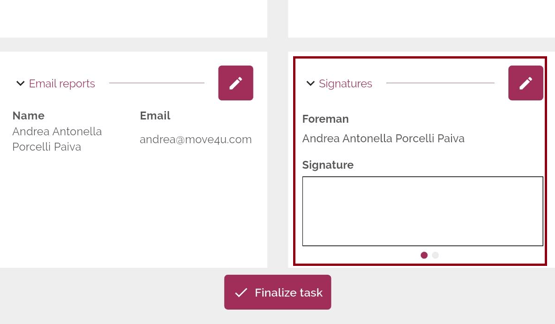
- Below the Disclosure, you'll find a new field where you can add the customer's initials.
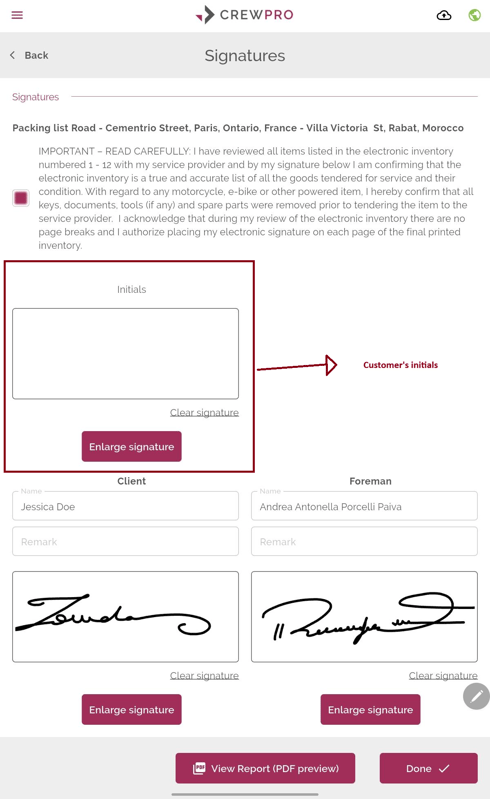
- In addition to the driver's signature and the customer's signature, enter the customer's initials and tap Done.
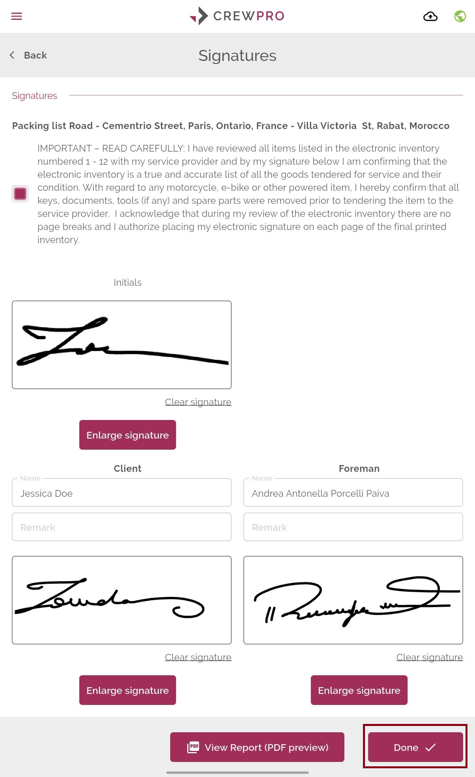
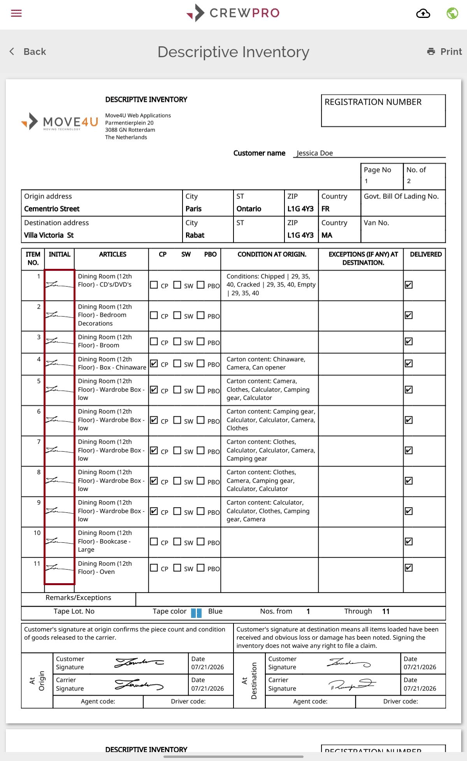
- The customer's initials will appear next to each item in the Descriptive Inventory.
- Return to the task and try finalizing it again.
Once the customer's initials have been added, you should be able to finalize the task successfully.