![Move4U.png]](https://support.move4u.com/hs-fs/hubfs/Move4U.png?height=30&name=Move4U.png)
If you can’t access to the Move Dashboard (For example, you only see a white page instead all the normal features) You can try using a different browser or clear your current browser’s cache. Clearing cached images and files helps fix web page loading issues, updates outdated site content, and frees up storage space without logging you out of your accounts or deleting saved passwords.
Step-by-Step Instructions by Browser
Google Chrome
- Open Google Chrome.
- Press the following:
- (Windows): Press Ctrl + Shift + Delete
- (Mac): Cmd + Option + E / Cmd + Shift + Delete
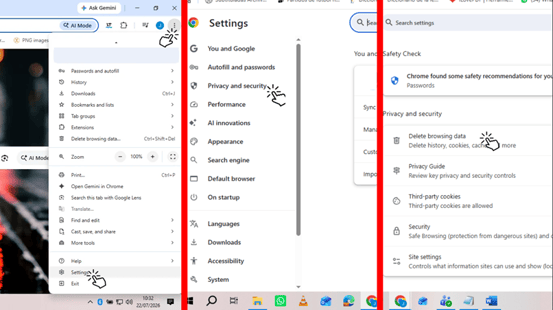
- Alternative: Select the three dots button at the top-right corner -> Choose settings -> Privacy and security -> Delete browsing data
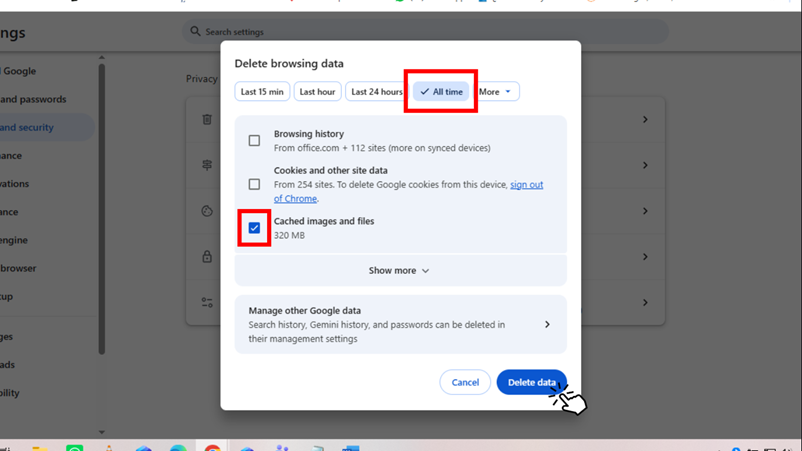
- In the Delete browsing data window, select All time from the Time range dropdown.
- Check only the Cached images and files option.
- (Uncheck "Browsing history" and "Cookies and other site data" if you only want to clear the cache).
- Click Delete data.
- Refresh the Move Dashboard.
Microsoft Edge
- Open Microsoft Edge.
- Press the following:
- (Windows): Press Ctrl + Shift + Delete
- (Mac): Cmd + Shift + Delete.
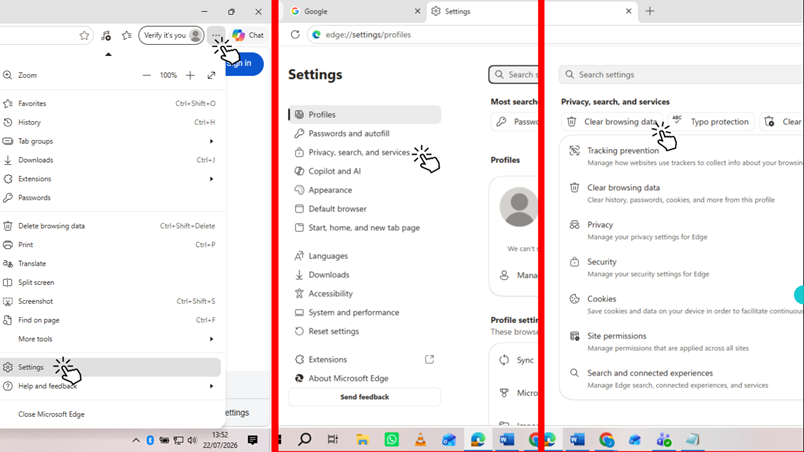
- Alternative: Select the three dots button at the top-right corner -> Choose settings -> Privacy, search, and services-> Clear browsing data
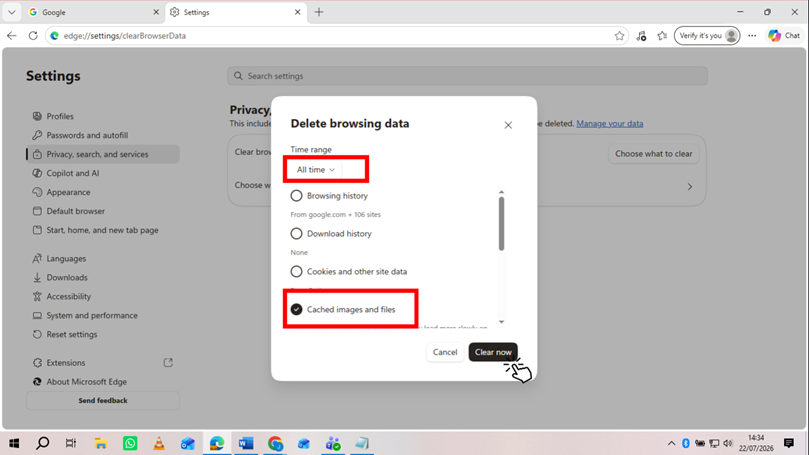
- Select All time from the Time range menu.
- Check only the Cached images and files option.
- Click Clear now.
- Refresh the Move Dashboard.
Mozilla Firefox
- Open Firefox.
- Press the following:
- (Windows): Ctrl + Shift + Delete
- (Mac): Cmd + Shift + Delete.
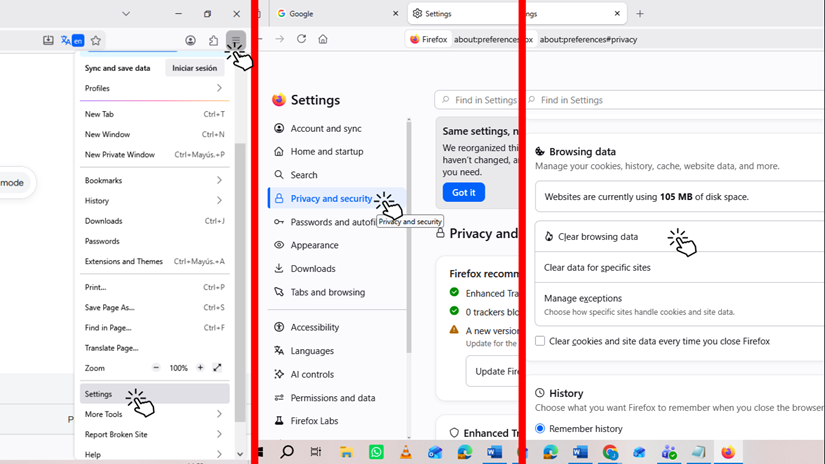
- Alternatively: Click the three line menu button-> Settings.-> Privacy and security -> Browsing Data -> clear browsing data
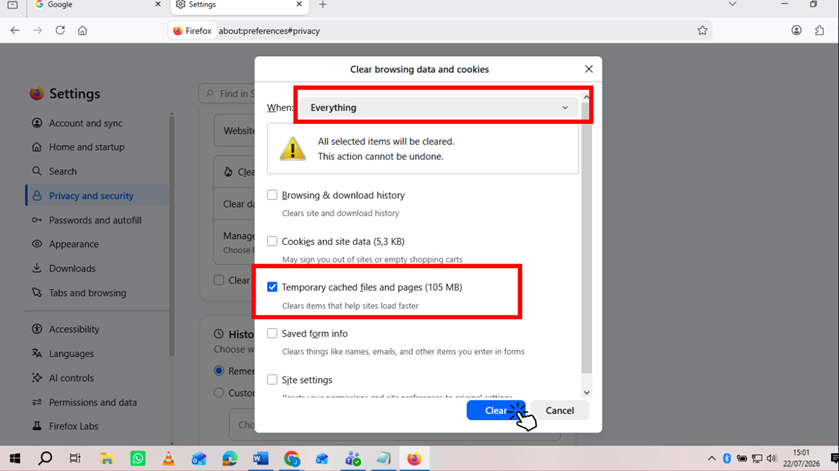
- Set the Time range to clear to Everything.
- Check only Temporary cached files and pages.
- Click Clear.
- Refresh the Move Dashboard
Apple Safari (Mac)
- Open Safari.
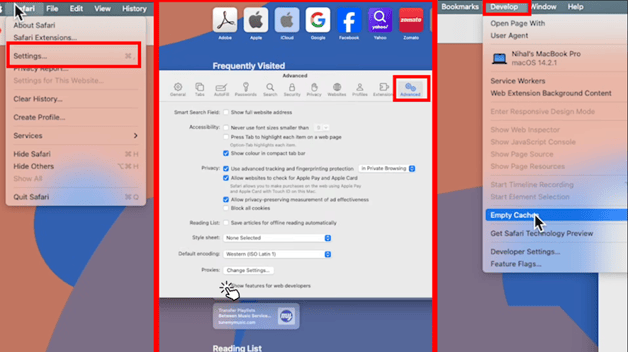
- Press Cmd + Option + E to instantly empty the cache.
- Alternative: via menu: Click Safari in the top menu bar > Settings/Preferences > Advanced > Check Show features for web developers / Show Develop menu. Then click Develop in the top menu and select Empty Caches).
Still Having Issues? Try Incognito / Private Browsing
If the Move Dashboard is still not displaying correctly after clearing your cache, open a Private/Incognito window. This mode loads the website without using any pre-existing cached data or extensions.
Keyboard Shortcuts to Open Incognito / Private Mode:
- Google Chrome: Ctrl + Shift + N (Windows) | Cmd + Shift + N (Mac)
- Microsoft Edge: Ctrl + Shift + N (Windows) | Cmd + Shift + N (Mac)
- Mozilla Firefox: Ctrl + Shift + P (Windows) | Cmd + Shift + P (Mac)
- Apple Safari: Cmd + Shift + N (Mac)