![Move4U.png]](https://support.move4u.com/hs-fs/hubfs/Move4U.png?height=30&name=Move4U.png)
If the application does not allow you to finalize your task, please check the following possible scenarios and find the one that matches your situation.
1.Connection Issue
The application requires an internet connection to finalize a task.
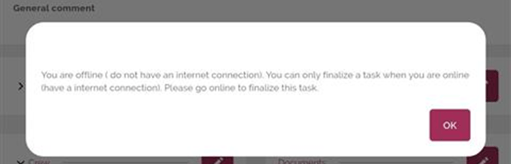
How to check:
Case A: Red World Icon 
If the world icon is only red, it means your device does not currently have an internet connection.
Please check the following:
- Make sure Airplane Mode is turned off
- Verify that your device has enough mobile signal or Wi-Fi connection
Case B: Red World Icon with a Diagonal Line
If the world icon is red and has a diagonal line across it, it means the application is in Forced Offline Mode.
How to fix it:
- Tap the world icon
- A pop-up window will appear
- Select Work Online
This will disable Forced Offline mode and allow the app to reconnect.
2. Need to Complete the Residence Inspection
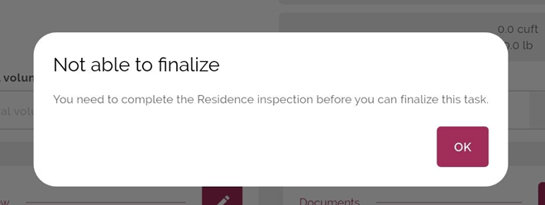
Before finalizing, both residence inspections must be completed.
How to complete them:
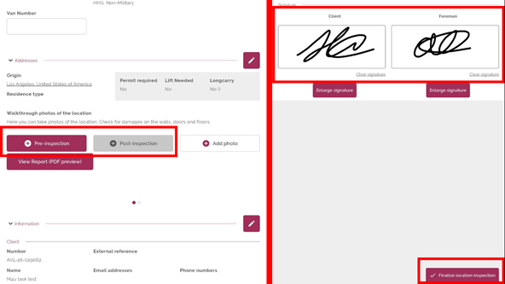
- Go to the Addresses section (If you are on a cell phone you need to open the section with the pencil icon)
- You will see two buttons:
- Pre Inspection
- Post Inspection
- Both inspections must be completed
- Open each one and:
- Collect the client’s signature
- Add your signature
- Press Finalize
Important:
- Pre Inspection is used to record damages that already existed before the move
- Post Inspection is used to record damages that happened during the job
Once finalized, no more damages can be added.
If you need to add residence damages, please refer to the residence damage tutorial from minute 1:34 VIDEO
.3. Forms Not Completed
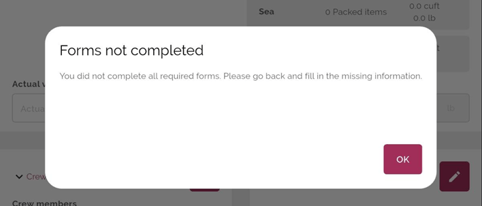
If you receive this warning, it means some required documents are still incomplete.
How to complete them:
- Go to Reports
(On some devices, this section may appear as Documents) - Open the section
- Required documents will appear highlighted in yellow
- Press the Edit button
- Fill in all the required information
- Press Done to save
Once all mandatory documents are completed, you will be able to finalize the task.
(For detailed instructions on how to fill out these documents, please refer to the forms tutorial.
VIDEO)
4.Missing Client Signature / Foreman Signature
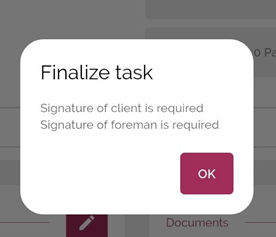
This warning means the inventory signatures are still missing.
How to fix it:
- Go to the Signatures section
- Press the pencil icon
- The client must read and accept the disclaimer
- Collect:
- The client’s signature
- Your signature (Foreman)
- Press Done to save
After both signatures are completed, you will be able to finalize the task.
5.High Value Initials
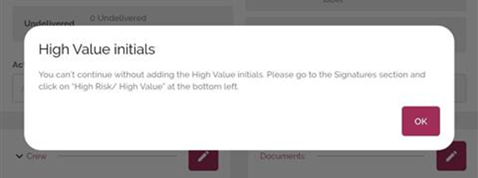
If the task cannot be finalized because of this disclaimer, the client must provide initials for all high-value items.
How to complete it:
- Go to the Signatures section
- In the lower-left corner, press the Initials button
- Once completed, press Done
- Finally, press Done to save all progress
After this, you will be able to finalize the task successfully.
6. Initial Signature
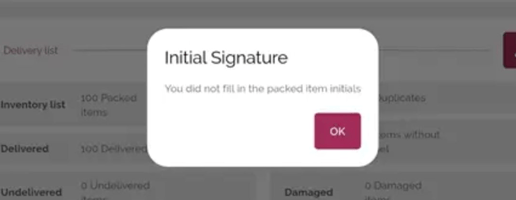
If you are working on a delivery task and you receive this disclaimer, it is because you are missing the customer’s initials.
How to collect them:
- Go to the Signatures section.
- Above the signatures, you will find the ‘Initials’ box at the left side.
- Once collected, press Done.
After this, try to finalize your task again.
If you are still experiencing issues finalizing any of your tasks, reach out to us at support@move4u.com and we will help you as soon as possible.